What is this?
I’ve seen several occurrences in the forum where people asked about specific workflows. With this post, I want to show you my workflow. I think this will also show features where people struggle. E.g. region import from Logic Pro and make things clearer.
I hope to be the starting point of others showing their workflows and I can pick something up from them and get inspired 🙂
Logic Pro Project
For example, that’s one of my complete Logic Pro clicktrack projects.
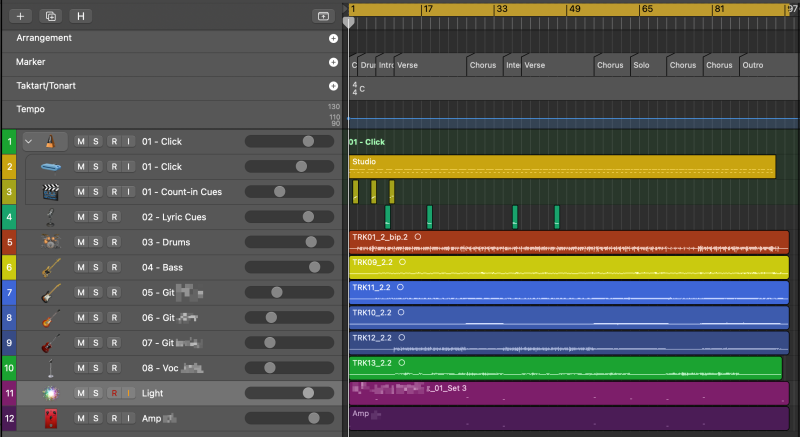
At the top you can see the song segment markers.
There’s one „01 Click“ track that consists of a MIDI click and MIDI count-in Cues.
Then there are lyric cues for our singer, followed by the other music tracks.
At the bottom are MIDi tracks for light events and guitar amp controls.

Here’s a great guide from Scott Uhl where I got lots of inspiration for my clicktrack setup:
„BACKING TRACKS for LIVE PERFORMANCES - COMPLETE Step by Step Guide“
https://www.youtube.com/watch?v=nw8wZfFSQ2w
Import audio tracks
During our band rehearsals we do a multitrack recording to a click. I set the same tempo in Logic Pro (tempo changes via tempo map). Afterwards, I import the audio tracks into Logic Pro, cut them and move them to the grid.
Region marker
Setting the region markers. These can be imported to StageTraxx. More info about how to do this in the sections below.
MIDI Click
Add the MIDI click. I make sure that the click starts 2 bars before the actual songs starts so we have a nice count-in.
MIDI Count-In Cues
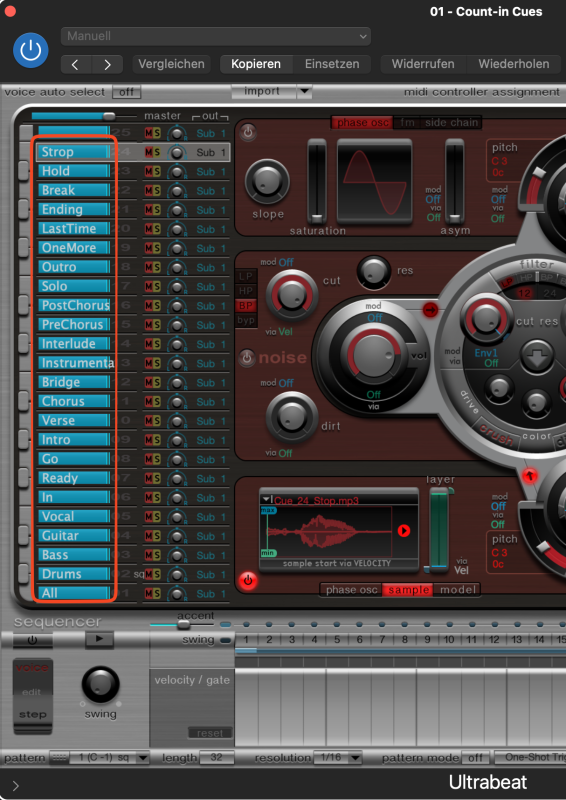
Adding MIDI count-in Cues. I use the „Ultrabeat“ plugin to trigger custom recorded snippets like „All, In, Ready, Go“, „Bass, Go“, „Solo“, „One more time“, etc.
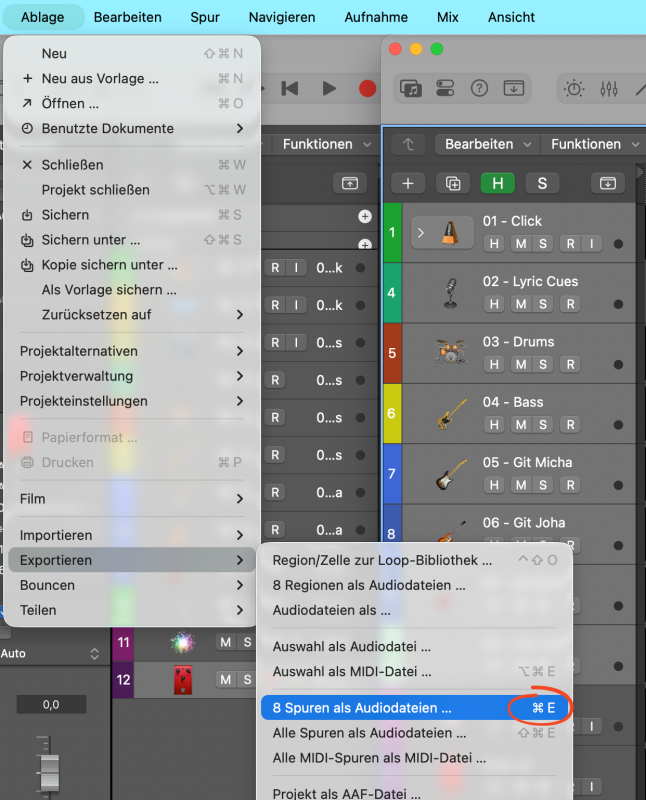
Exporting and converting the tracks
- Adjust the cycle region as desired
- Select all tracks to export
- „Command + e“:
- 
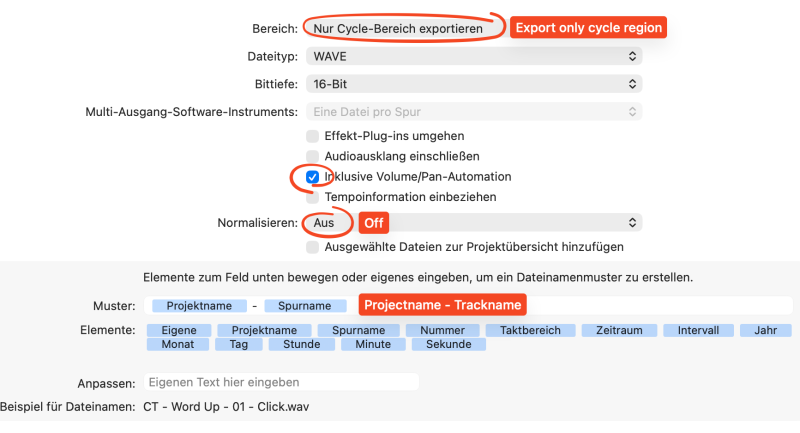
My export settings:

Import markers as audio regions
Logic Pro can export markers in WAV, AIF or CAF files. Stage Traxx can convert these into audio regions. Let’s do that.
Add one WAV track to your song:
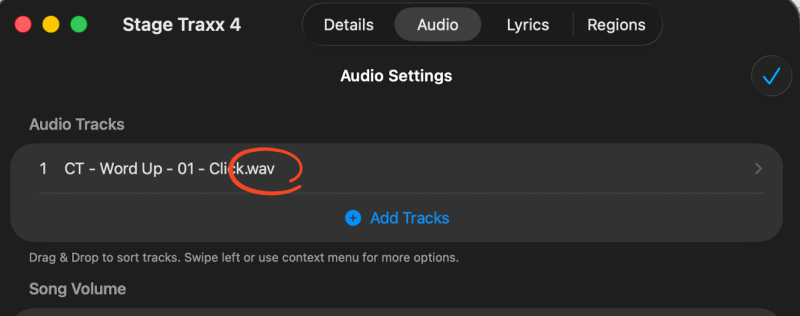
Now this import button appears:
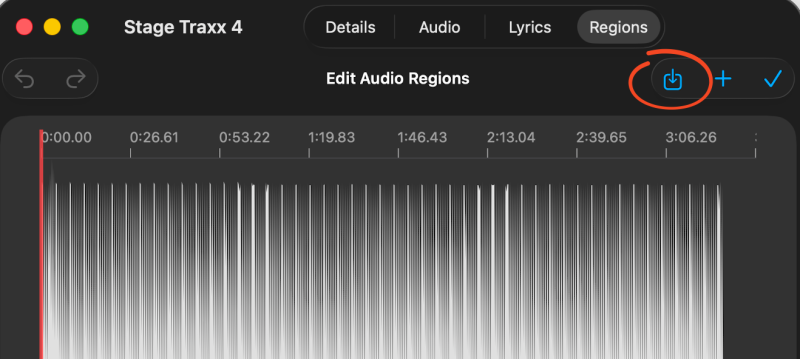
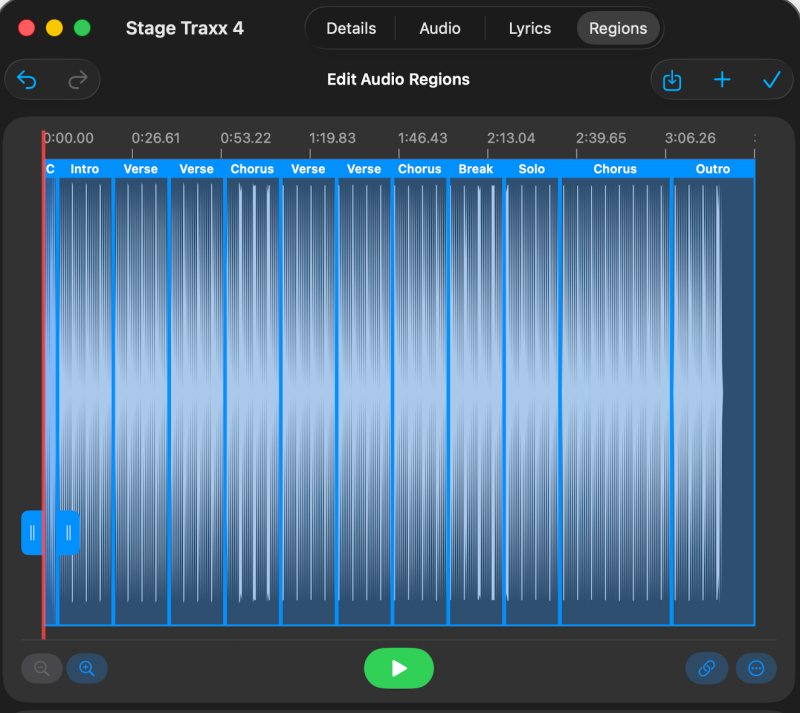
Click that and enjoy your automatically created audio regions:
I colorcode them afterwards:
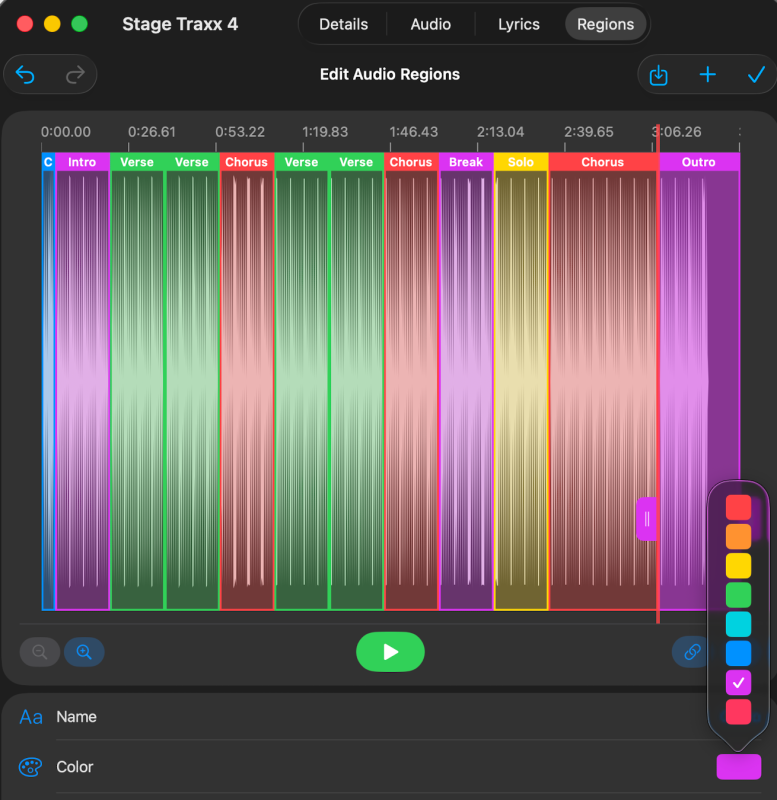
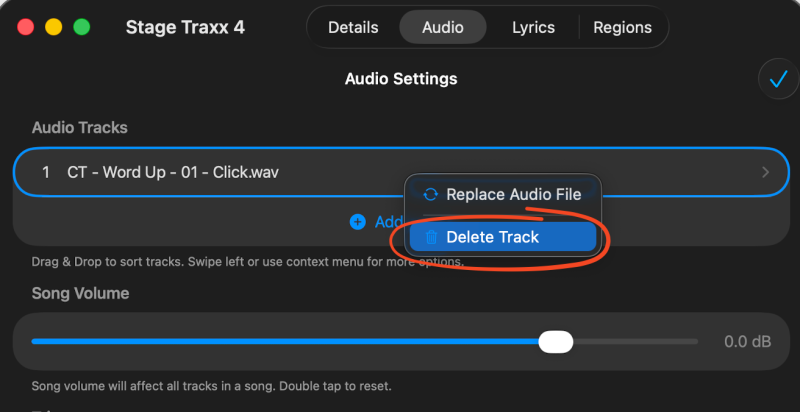
The big WAV file is not needed anymore and can be deleted to save some space. The audio regions are still there afterwards.
Converting WAV files to M4A
I created a quick action to quickly convert all selected WAV files into 64kbit M4A files.
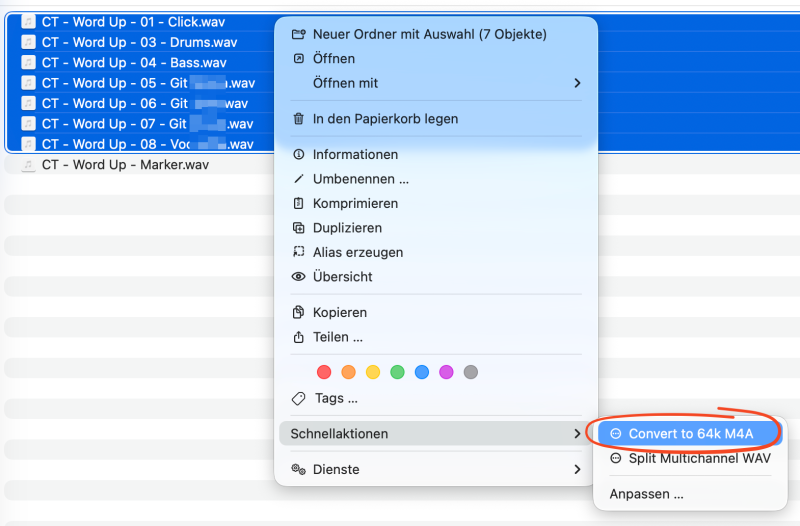
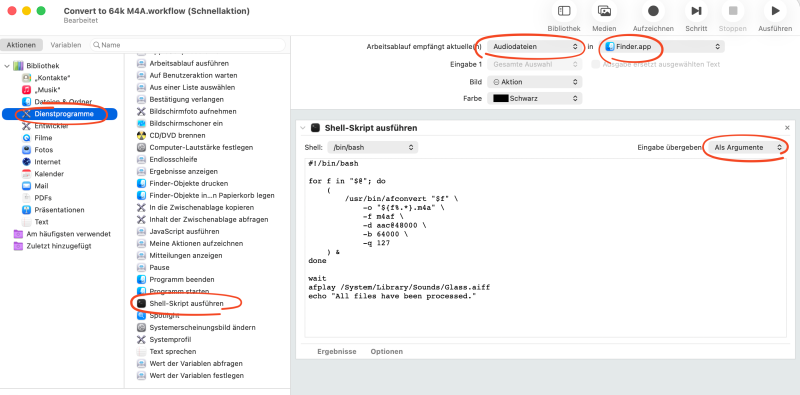
This can be accomplished via the app „Automator“ (already part of MacOS).
- Open Automator.app
- „New“ —> Type of document: Quickaction
- Drag the shell script element into the workflow and apply these settings:
- 
Script:
#!/bin/bash
for f in "$@"; do
(
/usr/bin/afconvert "$f" \
-o "${f%.*}.m4a" \
-f m4af \
-d aac@48000 \
-b 64000 \
-q 127
) &
done
wait
afplay /System/Library/Sounds/Glass.aiff
echo "All files have been processed."
Save the workflow. The quick action should be available now in the quick action menu of the Finder.
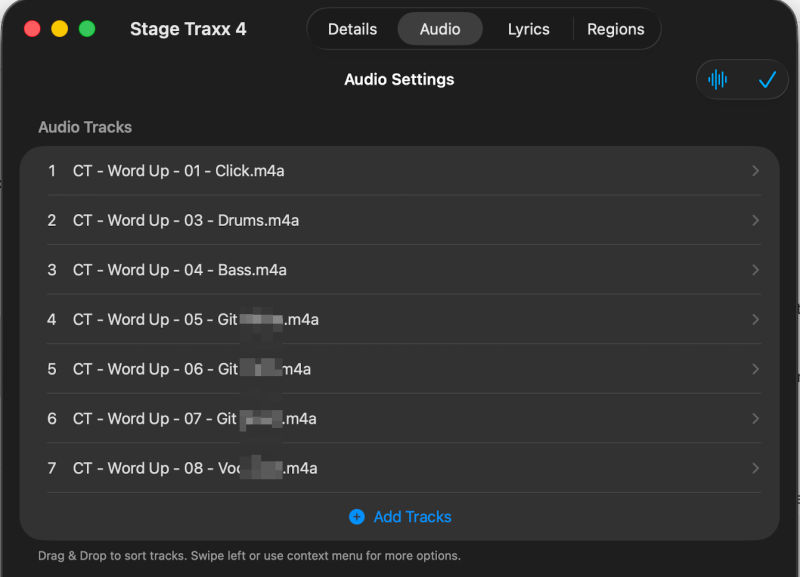
After conversion, I add the M4A files to the song and assign the corresponding buses to them:
Guitar amp controls
The goal of this segment is to convert the guitar MIDI commands into StageTraxx MIDI commands.
Desired output:
[midi@00:00.000: CC43.4@4] ;Clean
[midi@01:01.017: CC43.6@4] ;Distortion
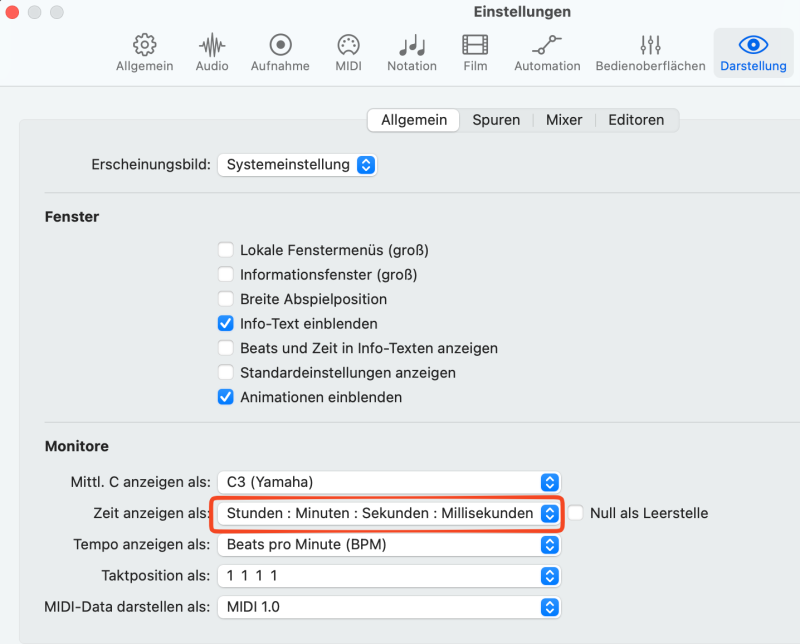
Precondition for this segment is that Logic Pro time settings must be „Hours : Minutes : Seconds : Milliseconds“:
I’m switching the scenes on my Quad Cortex guitar modeler using the „CME WIDI Jack DIN-5 MIDI Bundle“.
Note: Logic Pro is not used to send MIDI to the guitar modeler here. The MIDI amp track data is only used for being exported to StageTraxx.
I set up custom note names in the piano roll corresponding to my guitar modeler scenes (it’s not necessarily needed, but it’s a bit nicer to work with).
„How to Customize Note Names in Piano Roll - Logic Pro X Tutorial“
https://www.youtube.com/watch?v=oQiBOduhyMY
Activate this option:
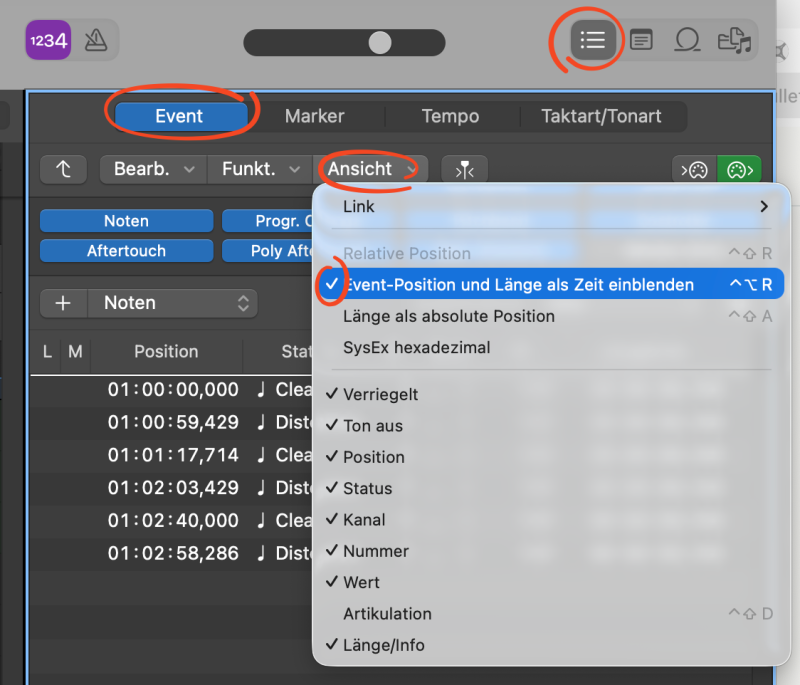
Now, select the midi file/track and go the event viewer and click on one event. Hit „Command + a“ to select all events and copy them with „Command + c“.
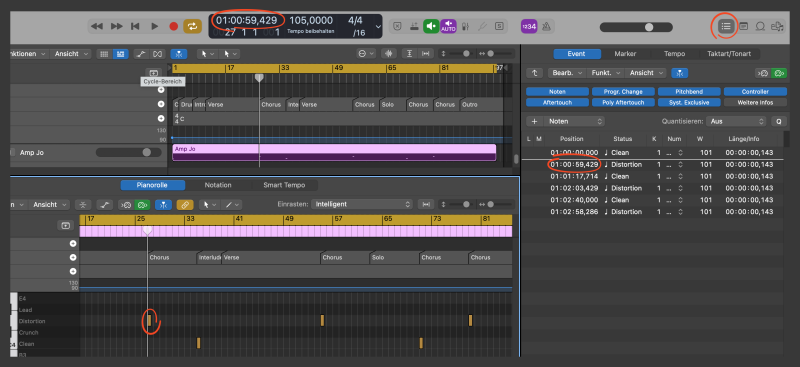
Now the „magic“ happens ✨
For the longest time I converted this via an Excel script, but I figured it would be easier for most folks to just use an AI and adapt the promt to their needs. So I converted my Excel script into a promt. Tested with Gemini 3 Pro and it worked great:
You are a MIDI amp control converter. Convert guitar amp status changes into MIDI CC43 commands.
INPUT FORMAT:
Tab-separated values: Position | Status | (other columns ignored)
- Position format: HH:MM:SS,mmm (e.g., 01:00:00,000)
- Status contains: ♩ Clean, ♩ Crunch, ♩ Distortion, or ♩ Lead
OUTPUT FORMAT:
[midi@MM:SS.mmm: CC43.{value}@4] ;{Status}
MAPPING RULES:
- Clean → CC43.4@4
- Crunch → CC43.5@4
- Distortion → CC43.6@4
- Lead → CC43.7@4
POSITION CONVERSION:
1. Remove first 3 characters (removes "01:")
2. Replace 6th character with "."
3. Remove 4 characters starting at position 10
EXAMPLE INPUT:
01:00:00,000 ♩ Clean 1 C4 = Clean 96 01:00:00,188
01:00:57,000 ♩ Distortion 1 D4 = Distortion 96 01:00:57,188
01:01:16,773 ♩ Clean 1 C4 = Clean 96 01:01:16,940
01:02:15,440 ♩ Lead 1 D♯4 = Lead 96 01:02:15,606
EXAMPLE OUTPUT:
[midi@00:00.000: CC43.4@4] ;Clean
[midi@00:57.000: CC43.6@4] ;Distortion
[midi@01:16.773: CC43.4@4] ;Clean
[midi@02:15.440: CC43.7@4] ;Lead
Now convert this data:
[PASTE YOUR DATA HERE]
Et voila, you have your MIDI data converted into Stage Traxx MIDI commands 🥳
I use the same approach for the MIDI light events.
Region timestamps
As reference points, I want to convert the region markers into example MIDI commands. This can be useful for timestamping the lyrics.
Example of desired output:
; Regions
; [midi@00:00.000: CCxx.x@x] Count-In
; [midi@00:04.174: CCxx.x@x] Intro
; [midi@00:20.870: CCxx.x@x] Verse
; [midi@01:44.348: CCxx.x@x] Chorus
; [midi@02:01.043: CCxx.x@x] Break
; [midi@02:17.739: CCxx.x@x] Solo
; [midi@03:07.826: CCxx.x@x] Outro
How-to
Go to the marker page and enable this option:
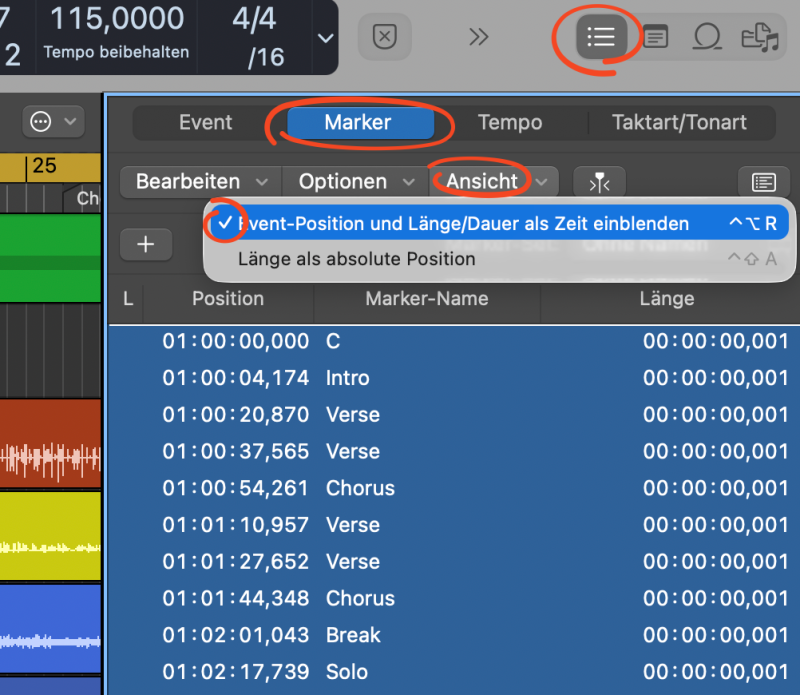
Now, click on one marker entry. Hit „Command + a“ to select all markers and copy them with „Command + c“.
AI promt for conversion:
You are a MIDI marker data converter. Convert the input data into MIDI marker format.
INPUT FORMAT:
Tab-separated values with columns: Position | Marker-Name | (other columns ignored)
- Position format: HH:MM:SS,mmm (e.g., 01:00:00,000)
- Marker names can be any text
OUTPUT FORMAT:
; [midi@MM:SS.mmm: CCxx.x@x] Marker-Name
CONVERSION RULES:
1. Remove first 3 characters from position (removes "01:")
2. Replace 6th character with "." (changes "00:00,000" to "00:00.000")
3. Remove 4 characters starting at position 10 (removes ",000")
4. Format as: ; [midi@{converted_position}: CCxx.x@x] {marker_name}
EXAMPLE INPUT:
01:00:00,000 C 01:00:00,001
01:00:04,174 Intro 01:00:04,174
01:00:12,522 Chorus 01:00:12,522
01:00:37,565 Verse 01:00:37,566
01:00:54,261 Pre-Chorus 01:00:54,261
EXAMPLE OUTPUT:
; [midi@00:00.000: CCxx.x@x] C
; [midi@00:04.174: CCxx.x@x] Intro
; [midi@00:12.522: CCxx.x@x] Chorus
; [midi@00:37.565: CCxx.x@x] Verse
; [midi@00:54.261: CCxx.x@x] Pre-Chorus
Now convert this data:
[PASTE YOUR DATA HERE]
Result
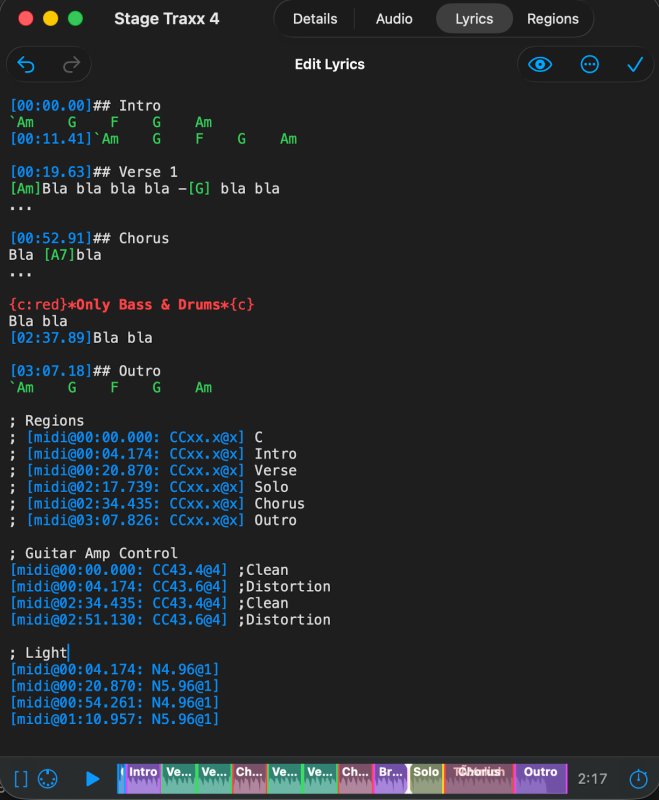
All combined, the lyrics view looks something like this then:
@peter , could you please pin this tutorial? I guess this would help/inspire lots of people 🙂